


How it worksLanguagesPricingBlogsFAQ

Urdu SRT file generator for YouTube, editors, and Reels

Upload a video, choose Urdu or Roman Urdu, and download a timed .srt or .vtt file. Every word gets its own start and end time. Fix any line before you export. Free to try, no watermark.

Footage thumbnail
Upload a video
Prism Pro

Subtitle files

Turn an Urdu video into a subtitle file

Upload a video with Urdu speech, choose Urdu script or Roman Urdu, fix the words and the timing, then download an SRT or VTT file. The file carries text and timing only, and you can burn the same captions into a video from the same project.

01

Upload and pick the script

Drop in an MP4, MOV or audio file and choose Urdu for Nastaliq script read right to left, or Roman Urdu for Latin letters. Guests can try captioning without an account, and this page starts with Urdu selected.

02

Check the words and the timing

Every word carries its own start and end time. Fix misheard words, split long lines or merge short ones, and check names, English terms and numbers in the transcript before you download anything.

03

Download SRT or VTT and verify

SRT suits YouTube and most desktop editors, and VTT suits web players. Open the file in the program where it will be used and check how the Urdu text renders there, because that program picks the font. An account is required to export.

Styles

Style the burned-in captions, keep the file plain

Karaoke, Word Pop, Highlight, Boxed and the other styles apply to the captioned video you export, where the look is fixed into the picture. SRT and VTT carry the text and its timing only, so the receiving player controls the font and appearance. Preview the styles in the editor, then decide which deliverable each destination needs.

Word Pop
Karaoke
Typewriter
Nastaliq
Code-switch
Highlight
Boxed
Clean
Spanish output
French output
Bold
Word Pop
Karaoke
Typewriter
Nastaliq
Code-switch
Highlight
Boxed
Clean
Spanish output
French output
Bold
Word Pop
Karaoke
Typewriter
Nastaliq
Code-switch
Highlight
Boxed
Clean
Spanish output
French output
Bold
Word Pop
Karaoke
Typewriter
Nastaliq
Code-switch
Highlight
Boxed
Clean
Spanish output
French output
Bold

Features

Features for Urdu subtitle files

  • Word-Level Timing

    Captions follow each spoken word. Review the transcript and correct text before export.

  • Styles You Can Adjust

    Choose from standard and animated caption styles, then tune type, color, and emphasis.

  • Urdu script or Roman Urdu in the file

    Choose Urdu for right-to-left Nastaliq text in your SRT or VTT, or Roman Urdu for Latin letters, and convert between the two in the editor without uploading again. Conversion changes the writing system only and never translates. Subtitle lines are built from per-word timings, so the text in the file starts and stops with the speech.

  • Place Captions Where They Fit

    Drag captions into position and use platform safe-zone guides to keep them clear.

  • Export Video Or Subtitle Files

    Download your captioned video or save timestamped SRT and VTT subtitle files.

  • Edit In Your Browser

    Upload, review, and style captions in one browser workflow. No video editor to install.

Urdu subtitle files

Download Urdu subtitles you can upload, send and edit

Generate a timed transcript from Urdu speech, fix the words in the browser, then download an SRT or VTT file built from per-word timestamps. Choose Urdu script or Roman Urdu depending on who will read the subtitles, and export both versions from one project. You can also burn the captions into a video when a post cannot use a separate file.

SRT and VTT

Download Urdu subtitles as a timed file

Upload a video with Urdu speech and AutoCaption builds a transcript with a start and end time for every word. Edit the lines in the browser, then download the file as .srt or .vtt. The files are small UTF-8 text, so you can send one for review or keep it beside the video without moving large footage around. An account is required to export, and exports have no watermark.

  • SRT suits YouTube and most desktop editors; VTT suits web players. Download both if you are unsure which the destination expects.
  • The files are UTF-8. If a subtitle shows strange symbols, the program reading it is not handling Unicode: open the file in a modern text editor or import it straight into your player or YouTube.
  • Credits and per-video limits still apply, and each download comes from the same reviewed transcript you see in the editor.
Editorial illustration of a laptop and phone showing the same mosque-courtyard video beside two tied SRT and VTT document cards.
Timed text vs burn-in

What a subtitle file carries

An SRT or VTT file holds the text and its timing, and nothing else. The receiving player or platform chooses the font, size and appearance, so the Nastaliq styling you see in the preview will not travel inside the file. Burn the captions into the video when the chosen look has to stick, and send the file when the viewer or the editor should control the subtitles instead. Check Urdu rendering in YouTube or your player after upload to see how the text arrives.

  • Font support decides whether the Nastaliq letters shape and space correctly in the destination, so always verify there rather than only in the preview.
  • Each burned-in export is one ratio (9:16, 1:1 or 16:9), while one subtitle file serves the same video wherever it is posted.
  • Download the file, open it where it will be used, and confirm the Urdu text before you publish.
Editorial illustration of a Nastaliq calligraphy practice sheet beside a phone showing Lahore architecture.
Word timing accuracy

Timing you can trust before you download

Subtitle lines are grouped from per-word timestamps, so each line appears and disappears with the words it covers. Nudge the wording and the line breaks in the editor until every subtitle reads comfortably. The waveform timeline and synced preview playback make it easy to find the spot a line belongs to, and find and replace handles a name the transcription guessed wrong throughout the clip. Fix the words first and the timing second, because corrected text can change where a line should break.

  • Split a long sentence at a natural pause, or merge two short lines, then play the passage back to confirm the new timing.
  • Listen through overlapping speakers, music and background noise, where automatic timing needs the most checking.
  • Read each subtitle at the pace of the clip so viewers can follow both the words and the person on screen.
Editorial illustration of a microphone, headphones and pinned paper phrase strips beside a phone showing a speaking presenter.
Urdu script or Roman Urdu

Choose the writing system for the file

Choose Urdu before transcription for subtitles in Nastaliq script, read right to left, which is what Urdu-reading viewers expect. Choose Roman Urdu for Latin letters, the way a lot of Pakistani and Indian audiences type online. You can convert between the two in the editor without uploading again, and the conversion never translates: it changes the writing system only. Export one version, convert, and export again when you need both files.

  • Export once in Urdu script, convert to Roman Urdu, and download a second file from the same project.
  • Review the converted spellings and names before the second export, because converted Roman Urdu is a starting point, not a final choice.
  • Tell your client or team which file is which, since the same speech can ship in two writing systems.
Explore Roman Urdu captions
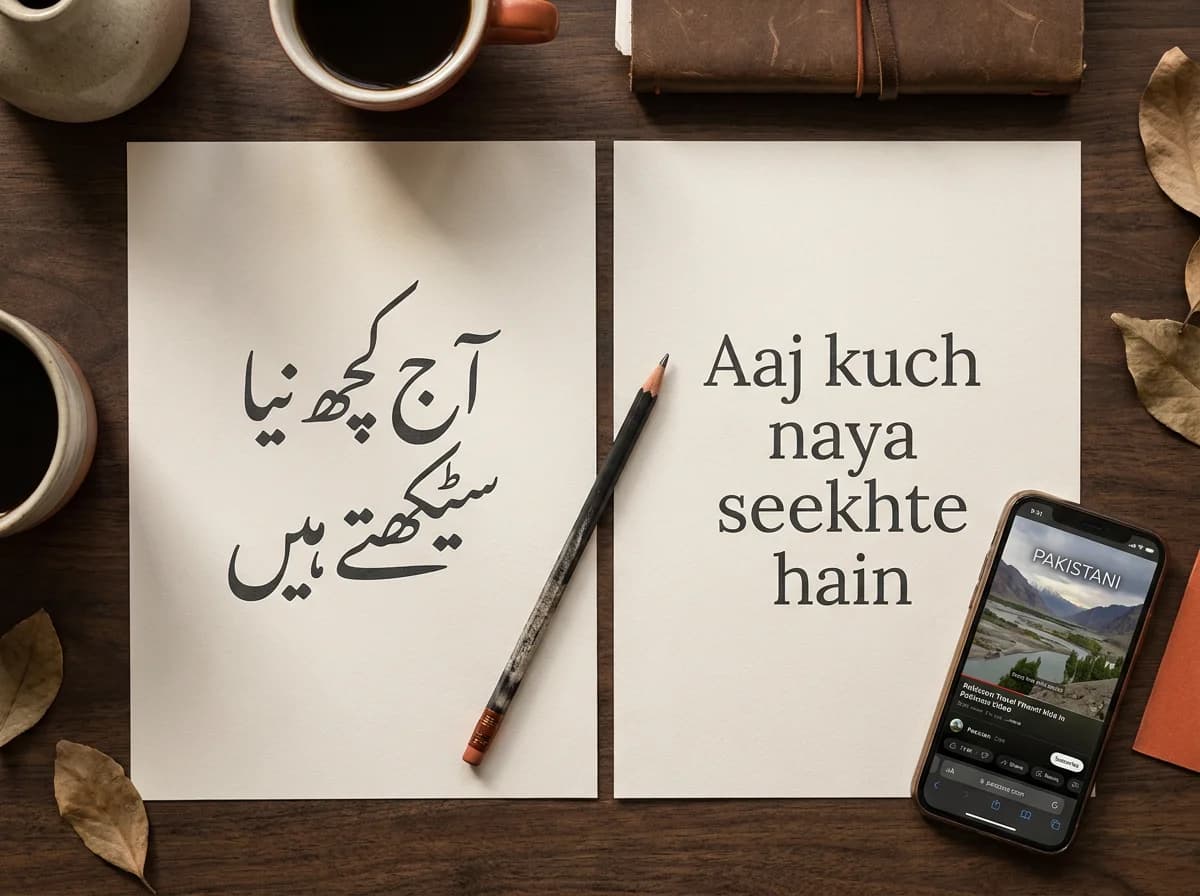
Editorial illustration of two paper sheets, one with Urdu calligraphy and one reading ‘Aaj kuch naya seekhte hain’, beside a phone showing a Pakistani travel video.

Check your Urdu subtitle file before you send it

Upload and pick the language

Drop in the video or audio file and choose Urdu or Roman Urdu before transcription starts. This page opens with Urdu selected, and you can switch to Roman Urdu first if that is the file you need. Guests can try the whole flow without an account.

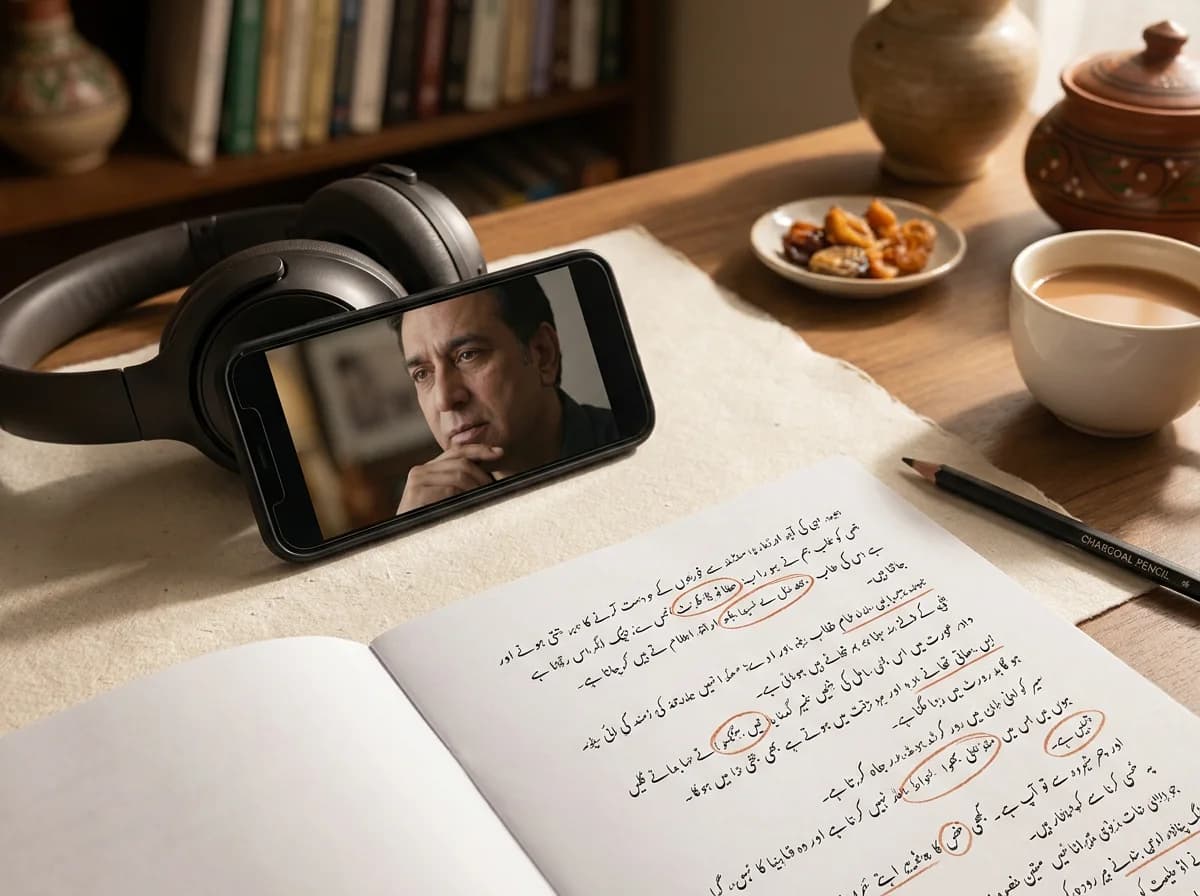
Editorial illustration of headphones beside a phone showing an interview and a notebook with an annotated Urdu transcript.

Check the transcript before the download

Play the recording while reading the Urdu transcript, and fix names, places and English terms instead of accepting every generated word. The file you download says exactly what the transcript says, so this review matters more here than for a captioned video you can restyle later.

Editorial illustration of a laptop and phone showing a street-food video beside a handwritten checklist.

Open the file where it will play

Import the SRT or VTT into the player, editor or platform where it will be used, and check how the Urdu text renders there. The receiving program controls the font and appearance, so this is where you confirm the Nastaliq shaping and the line breaks in practice.

Editorial illustration of a phone on a tripod filming a street-food cooking video, with an empty caption bar at the bottom of the phone screen.

Burn a copy for short video

Reels, TikTok and Shorts do not read a sidecar subtitle file, so burn the captions into one ratio for those posts while the SRT or VTT serves YouTube and your editor. Both outputs come from the same reviewed project.

Urdu subtitle files for the videos you publish.

YouTube creators

Give viewers an Urdu track they can turn on and off in long videos.

Upload the file in YouTube Studio

Open the video’s Subtitles section, add Urdu as the language and upload the .srt with its timing, so the subtitles arrive already synced.

Keep a burn-in copy for clips

When a long video also becomes Reels or Shorts, burn captions into one ratio for those posts and keep the SRT for the full upload.

Check the transcript once more

YouTube viewers read exactly what the file says, so confirm names, titles and terms in the transcript before you upload it.

Video editors and post teams

Caption once in the browser and keep cutting in your editor.

Import the SRT

Premiere Pro, DaVinci Resolve and most desktop editors import an SRT, so the captions join your timeline with their timing intact.

Send a small file for review

An SRT is a text file you can send for wording changes without moving the video back and forth.

Keep text and timing together

Wording edits change the text only, while the per-word timing you reviewed stays in the file.

Podcast and interview producers

Deliver subtitle files for Urdu conversations and excerpt clips.

Pick a self-contained excerpt

Choose a clip that stands on its own and fits your plan’s duration limit before you transcribe it.

Check speaker changes

Confirm overlapping speech, guest names and interruptions in the transcript so subtitle lines follow the conversation.

Deliver both outputs

Send the SRT or VTT for archives and platforms that read subtitle files, and a captioned clip for social posting.

Teachers and course creators

Urdu lessons that learners can read along with.

Match the writing system to the learner

Urdu script helps learners read Nastaliq, and Roman Urdu helps viewers who type Urdu in Latin letters. Convert in the editor to serve both.

Check the terminology

Confirm letters, vocabulary and worked examples against the audio before learners rely on the subtitles.

Verify rendering in the course platform

Upload the file to the player your course uses and check the Urdu text there before the lesson goes live.

Why a file

Why creators need an Urdu SRT, not only burned-in captions

Long YouTube videos

YouTube lets you upload a subtitle file so viewers can turn the Urdu track on or off, and the text stays readable to search. Use SRT or VTT.

Your editor

Premiere Pro, DaVinci Resolve, and most desktop editors import an SRT, so you can caption once and keep cutting.

Clients and teams

An SRT is a small text file you can send for review, translation, or another cut. The video does not have to move with every wording change.

Burned-in captions are the right file for Reels, TikTok, and Shorts, because those apps do not read a separate subtitle file. A lot of Urdu video also needs a file you can upload, send, or re-edit.

Script

Urdu script or Roman Urdu, same file workflow

Urdu script

Choose Urdu before upload. The transcript comes back in Urdu script, read right to left, in a Nastaliq face (the calligraphy-style Urdu readers expect).

Roman Urdu

Choose Roman Urdu for Latin-script subtitles, the way a lot of Pakistani audiences type.

Switch without re-uploading

Convert between Urdu script and Roman Urdu in the editor, then export whichever version you need. Export once, convert, and export again if you need both files.

How it works

How to make an Urdu SRT file

MP4, MOV, WebM, AVI, or MKV, up to 100 MB. Guests and Free accounts: 5 minutes per clip. Pro: 10 minutes per clip.

From clip to subtitle file

  1. 1

    Upload and pick a language

    Drop the file and choose Urdu or Roman Urdu. This page opens with Urdu selected, and you can switch languages before transcription starts.

  2. 2

    Check the transcript

    Every word is timed. Fix a misheard word, split a long line, or merge two short ones so each subtitle reads comfortably.

  3. 3

    Download SRT or VTT

    SRT suits YouTube and most editors. VTT suits web players. Files are UTF-8. If you also need Reels or Shorts, burn captions into one ratio (9:16, 1:1, or 16:9) from the same project. The download needs a confirmed email.

YouTube

Adding your Urdu SRT to YouTube

In YouTube Studio, open the video's Subtitles section, add Urdu as the language, and upload the .srt file with timing. Viewers get an Urdu track they can turn on. A step-by-step for the web caption format is in how to add a VTT file to YouTube, and the file itself is covered in how to create an SRT file from a video.

Which file

SRT vs VTT vs burned-in

Download both subtitle files if you are unsure, and burn a copy of the video when the post is a Reel or Short. Each burn-in export is one ratio.

YouTube long-form

Use
SRT upload, and a burn-in if you also cut clips

Instagram Reels, TikTok, YouTube Shorts

Use
Burned-in captions

Your own website or web player

Use
VTT

Premiere Pro, DaVinci Resolve, other editors

Use
SRT
Which AutoCaption export to use for each destination
You're posting toUse
YouTube long-formSRT upload, and a burn-in if you also cut clips
Instagram Reels, TikTok, YouTube ShortsBurned-in captions
Your own website or web playerVTT
Premiere Pro, DaVinci Resolve, other editorsSRT

Privacy

Where the video goes

The clip stays in your browser while you edit. Only the extracted audio is sent for transcription, and the captioned video is rendered on your device (MP4 when the browser supports it, otherwise WebM). A signed-in account also saves the project to your cloud library. Signing up is what unlocks export, not only a dashboard.

For the difference between a subtitle file and words saved in the video, see app captions vs captions saved in the file and SRT vs VTT. Reels-specific Urdu burn-in is on Instagram Reels Urdu captions.

What you get

A subtitle file you can actually edit

Urdu script, right to left

Script

  • Nastaliq through the preview and the burned-in export. A subtitle file carries the text and its timing; the receiving player picks the font.

Roman Urdu in the same project

Convert

  • Convert scripts in the editor and export a second SRT without uploading again.

Word-level timing

Timing

  • Lines are built from per-word timestamps, so you can split or merge before download.

SRT, VTT, and burn-in

Export

  • UTF-8 subtitle files, plus a captioned video if the post cannot use a sidecar.

Pricing

Simple pricing for creators who post

Start without a credit card. No watermark on exports, on every plan.

Free

PKR0/month
10 export minutes every month
500 MB cloud project storage
100 MB max upload size
All 8 caption styles included
Urdu script and Roman Urdu captions
Word-level karaoke timing
SRT and VTT subtitle downloads
Burn-in export for Reels and Shorts
No watermark on exports, ever
Save projects to your dashboard
Autosave while you edit
Browser editor, nothing to install

Pro

Featured
PKR1,274/month
120 export minutes every month
20 GB cloud project storage
100 MB max upload size
Custom font uploads
Priority transcription queue
Batch export up to 5 projects at once
Advanced caption styling and placement
10-minute clips per upload
Export history and re-download anytime
Email support with 24-hour response
Early access to new caption styles
Everything in Free

Studio

PKR7,499/month
500 export minutes every month
100 GB shared team storage
500 MB max upload size
Up to 5 team members in one workspace
Role-based access: Admin, Editor, Viewer
Shared project folders and team templates
Brand kit: saved colors, fonts, and presets
Custom vocabulary and glossary for your brand
SSO-ready team login (Google Workspace)
Dedicated account manager
Priority support with same-day response
API access for automated workflows
White-label export metadata
Unlimited batch exports
30-minute clips per upload
Everything in Free
Everything in Pro

FAQ

Urdu SRT files, answered

What the download includes, and what it does not.

Transcription, editing, SRT and VTT download, and burned-in video export are on the free plan, with no watermark. You can upload without an account. Guest clips are up to 5 minutes and 100 MB, inside a 50-credit session (one credit is six seconds of audio). The download itself needs a free account with a confirmed email. Verified Free accounts get 100 credits a month. Pro raises the clip cap to 10 minutes. See /pricing.

Yes. Choose Roman Urdu before upload, or convert Urdu-script captions to Roman Urdu in the editor, then download the SRT. See /captions/roman-urdu.

Every spoken word gets its own start and end time, and subtitle lines are grouped from those words. You can still nudge wording and line breaks in the editor before export.

Yes. Fix words, split or merge lines, and adjust the text in the browser, then export.

The file is UTF-8. That usually means the program opening it is not reading Unicode text. Open it in a modern text editor, or import it straight into YouTube or your video editor.

Choose Hindi, Punjabi, or Auto. Those languages are transcribed with automatic detection, then you export SRT or VTT the same way. See /captions/hindi and /captions/punjabi.

More tools

Caption Tools For The Languages You Use

Choose a language page to see how AutoCaption handles its speech, script, and export workflow.

AI Caption GeneratorUpload a video, edit word-timed captions, and export a captioned clip or SRT/VTT file.Arabic Caption GeneratorGenerate Arabic subtitles from your video. Edit words, choose a caption style, and export a captioned video or SRT/VTT. Start free with AutoCaption.Bengali Caption GeneratorFree Bengali (Bangla) caption generator with word-timed karaoke. Auto-detect Bengali speech, edit in the browser, burn into TikTok, Reels, and Shorts, or download SRT/VTT. No watermark.CapCut Urdu alternative Caption GeneratorCapCut's auto captions struggle with Urdu. Use AutoCaption instead: upload your clip, get word-timed Nastaliq captions with RTL karaoke, then burn-in for Reels or export SRT for CapCut. Free, no watermark.Dutch Caption GeneratorFree Dutch caption generator with word-timed karaoke. Auto-detect Dutch speech, edit in the browser, burn into TikTok, Reels, and Shorts, or download SRT/VTT. No watermark.English Caption GeneratorFree English caption generator with word-timed karaoke. Edit in the browser, burn into TikTok, Reels, and Shorts, or download SRT/VTT. No watermark.

More Resources

Subtitle Line Length and Reading Speed: Practical Guidelines

Subtitle Line Length and Reading Speed: Practical Guidelines

Learn how subtitle line length, reading speed, timing, and line breaks affect comprehension. Use practical checks for short videos without forcing every caption into the same rigid formula.

How to Caption Videos for Accessibility

How to Caption Videos for Accessibility

Learn how to caption videos for accessibility with accurate speech, useful sound information, speaker identification, readable timing, and a final review that includes the actual viewer experience.

Closed Captions vs Open Captions: Which Format Should You Use?

Closed Captions vs Open Captions: Which Format Should You Use?

Closed captions vs open captions explained in plain language, including viewer control, accessibility, styling, cross-platform behavior, and when each format fits.

Get your Urdu SRT in the browser

Upload a clip, check the words, download the file. Urdu script or Roman Urdu. Free to try, no watermark. Confirm your email to export.

Discover More

Urdu caption generatorRoman Urdu captionsInstagram Reels UrduUrdu podcast clipsHindi captionsCreate an SRT fileSRT vs VTTPricing
AutoCaptionAutoCaption

Word-level accurate AI video caption generator. Fast auto subtitles with custom animations, multi-language support, and watermark-free exports.

Copyright © 2026 AutoCaption. All rights reserved.

Company

  • Pricing
  • How it works
  • FAQ
  • Blog
  • Contact

Legal

  • Privacy Policy
  • Terms of Service

Connect

  • LinkedIn
  • Instagram

Europe & Global

  • English captions
  • Spanish captions
  • Portuguese captions
  • French captions
  • German captions
  • Italian captions
  • Dutch captions
  • Turkish captions

South Asia & Middle East

  • Urdu captions
  • CapCut Urdu alternative
  • Urdu SRT generator
  • Instagram Reels Urdu
  • Urdu podcast captions
  • Roman Urdu captions
  • Arabic captions
  • Persian captions
  • Hindi captions
  • Hindi karaoke captions
  • Punjabi captions
  • Bengali captions
  • Tamil captions
  • Telugu captions
  • Marathi captions
  • Gujarati captions

Asia & Pacific

  • Japanese captions
  • Korean captions
  • Indonesian captions
  • Vietnamese captions
  • Filipino captions
  • Thai captions

AUTO CAPTION