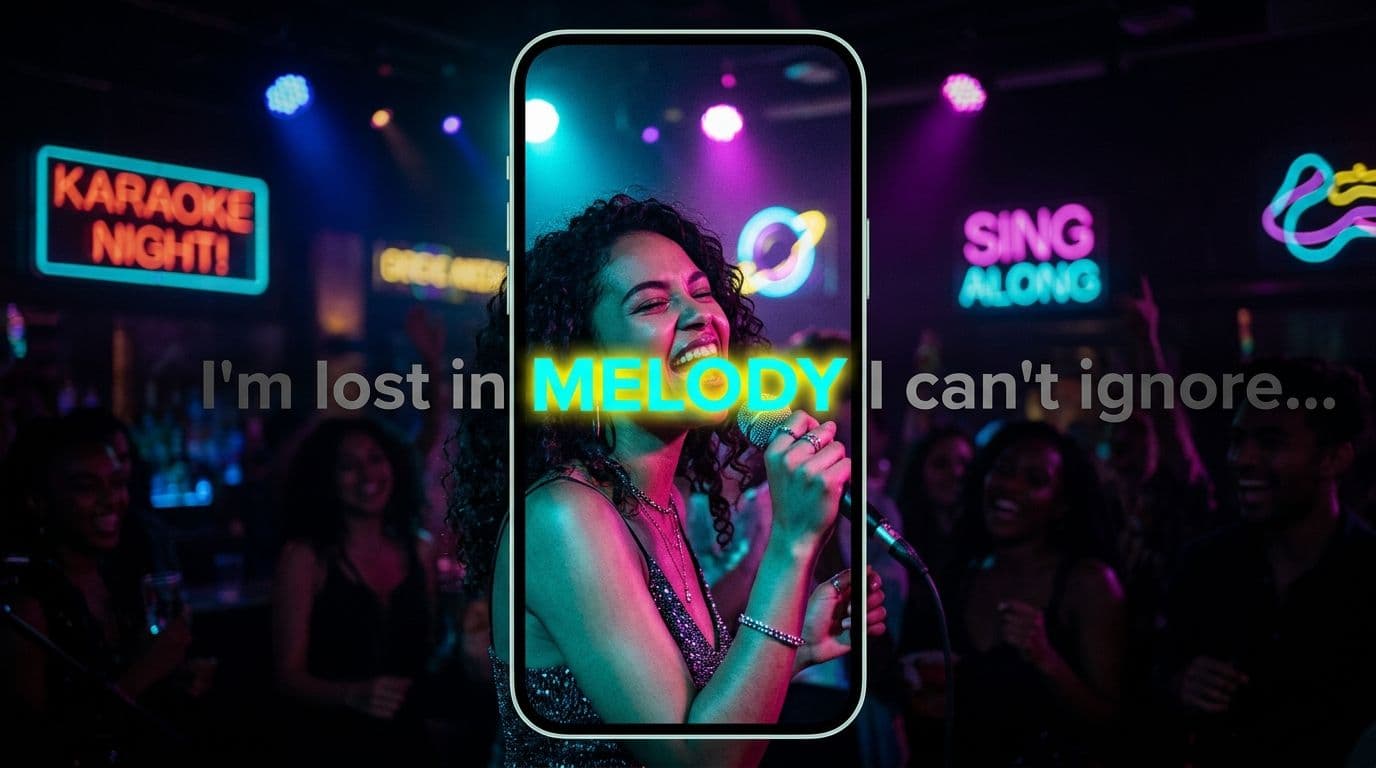
Word-by-Word Captions for Reels, TikTok, and Shorts
Learn how word-by-word captions work on short-form video, when to use a moving highlight, how to keep the pacing readable, and how to export a finished clip for Reels, TikTok, or Shorts.
Caption your next video free

Amina Qureshi
Word-by-Word Captions for Reels, TikTok, and Shorts
Word-by-word captions show a short phrase while the speaker talks, then highlight the active word at the moment it is spoken. They are useful for fast talking-head clips, tutorials, interviews, and other videos where the viewer needs to follow the voice closely.
The best version is not the one with the most motion. It is the one that makes the next word obvious without covering the face, hook, or important detail in the frame.
What word-by-word captions actually do
A regular caption line might show a whole sentence for several seconds. A word-by-word treatment uses more precise timing. The line stays readable, while a color, weight, box, or other visual cue moves through the words.
This creates a few benefits:
- Viewers can follow a fast speaker without searching through a paragraph.
- The active word gives the eye a steady place to land.
- A short phrase takes up less vertical space than a long transcript line.
- The style can reinforce the rhythm of a hook or punchline.
It also has trade-offs. Too much movement becomes tiring. One word at a time can feel slow when the speaker is explaining a complex idea. For most short videos, a small group of words with one active highlight is easier to read than a single isolated word.

How to make word-by-word captions
1. Start with a finished video
Caption the version you plan to publish. If you change the edit later, cuts and pauses can shift the timing. Keep a clean copy of the video without captions so you can restyle or export another version later.
Clear speech gives any caption tool a better starting point. Lower loud background music while the person is speaking, remove long silent gaps when appropriate, and avoid adding effects before the words are correct.
2. Generate the first caption pass
Upload the clip and choose the spoken language. Let the tool create timed text, then read the result beside the video. Automatic captions are a first draft, not a final proofread.
Check names, numbers, product terms, slang, and words that sound alike. A single wrong word in the opening hook can change the meaning of the whole clip.
3. Choose a readable phrase length
Keep the visible phrase short enough to read on a phone. A useful starting point is two to five words per caption, with one or two lines at most. Let the phrase follow a natural part of the sentence instead of cutting between a verb and the word that completes it.
If the speaker is slow, a longer phrase may work. If the speaker is fast, use fewer words and allow the highlight to do more of the timing work.
4. Pick one highlight treatment
Use one clear signal for the active word:
- A contrasting color is easy to scan.
- A weight change feels restrained and works for educational clips.
- A small background box is useful on busy footage.
- A scale or pop effect can fit an energetic hook, but it should not happen on every word.
Keep the base text and active word distinct in both light and dark scenes. If the highlight only works on one background, add an outline or a simple background shape.
5. Place captions inside the safe area
Vertical platforms cover the lower and right edges with usernames, buttons, captions, and other controls. Place the text where it remains visible when the video is shown inside the app. Keep the speaker's mouth and the main visual clear.
Preview the export at phone size. Desktop editing makes text look smaller than it will feel in a feed, and it can hide placement problems.
6. Watch the result once for timing
Do one pass with sound and one pass muted. With sound, check whether the active word follows the speaker. Muted, check whether the phrase still makes sense and whether the movement feels calm enough to read.
Fix a word's text first, then its line break, then its timing, and only after that its color or animation. This order prevents styling work from being wasted on a caption that still needs editing.
Word-by-word versus regular captions
| Style | Best for | Main risk |
|---|---|---|
| Regular caption lines | Interviews, lessons, reflective speech | Dense text can be hard to scan |
| Word-by-word highlight | Hooks, short tips, energetic delivery | Too much motion can distract |
| Single-word display | Very short phrases and punchlines | Slow speech can feel empty |
| Mixed treatment | A calm line with occasional emphasis | Inconsistent emphasis can look accidental |
The right choice depends on the clip, not on a trend. A calm explanation may need simple lines. A fast hook may benefit from a moving highlight.
Export choices
For a social post where the look must stay attached to the video, export a video with the captions visible. Keep an SRT or VTT file too if you may need to edit the text, upload a separate caption track, or reuse the transcript.
AutoCaption supports word-timed editing, animated styles, a video export, and SRT or VTT export in the same browser workflow. You can start from the caption editor after choosing the style that fits the clip.
For more style examples, read the guide to caption styles for Reels and TikTok. If your words are in Urdu, compare Urdu script and Roman Urdu captions before exporting.
Final checklist
- The first caption appears when the first meaningful words are spoken.
- The active word is easy to see without relying on motion alone.
- Captions do not cover faces, product details, or platform controls.
- Names, numbers, and brand terms are correct.
- The style still works when the clip is muted.
- You kept a clean video and an editable caption file.
Word-by-word captions are a timing and reading tool. When the phrase length, placement, and highlight are restrained, they help viewers follow the message without turning the video into a wall of moving text.
Written by
Amina Qureshi
Motion and Style Designer at AutoCaption. Builds readable caption looks for Reels, TikTok, and Shorts.