Karaoke Captions for TikTok: Word Highlights That Match Speech
Learn how karaoke captions for TikTok work, when word highlights help retention, and how to export burned-in captions that native TikTok auto captions cannot style the same way.
Caption your next video free
Amina Qureshi
Karaoke Captions for TikTok: Word Highlights That Match Speech
Karaoke captions for TikTok highlight each word as it is spoken, the way lyrics light up on a karaoke screen. Viewers can track the voice even with sound off. Native TikTok captions cannot deliver that custom highlight look as a portable style across every post and every platform.
If you only need basic readability inside TikTok, built-in captions may be enough. If you want active-word emphasis, brand colors, and the same file for Reels or Shorts, burn karaoke captions into the video before upload.
Start state and outcome
Start: a finished vertical talking clip or voiceover ready for TikTok.
Outcome: a 9:16 export where captions highlight in sync with speech and survive muted autoplay.
Why karaoke timing needs word-level data
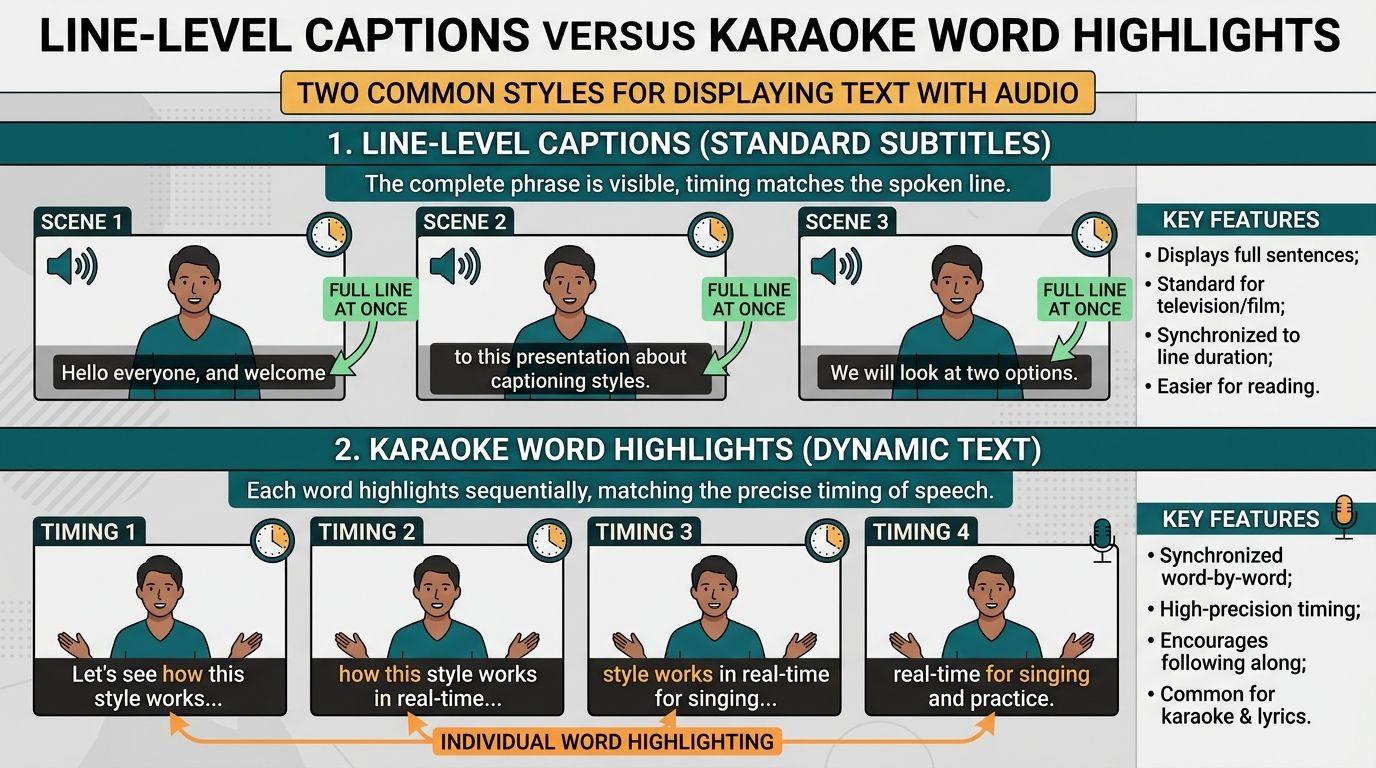
Line-level captions know when a whole phrase starts and ends. Every word in that phrase appears together. Karaoke styles need a start and end time for each word so the highlight can move with speech.
That is why some tools feel "almost karaoke" but snap a whole sentence at once. Without word timing, the effect is fake.
For the broader reading behavior behind short highlight captions, see word-by-word captions for Reels, TikTok, and Shorts.
The karaoke caption workflow
1. Capture the final audio
Use the cut you will post. If you later remove a sentence, every highlight drifts. Keep voice clear of loud music beds when possible.
2. Generate word-timed captions
Upload the clip and transcribe with word-level timestamps. Choose the correct language. Review names and slang before you touch style. Wrong words with perfect animation are still wrong.
3. Transform into a karaoke look
Pick a highlight style: color change, weight change, or a simple pop on the active word. Keep previous words readable but quieter. High contrast beats neon clutter on busy footage.
AutoCaption includes animated presets that use word timing, including karaoke-style highlighting, plus cleaner looks when the channel needs less motion. Style after the transcript is solid, not before.
4. Place for TikTok UI
TikTok overlays buttons and text in the lower area of the frame. Keep captions inside a safe band. If you also post to Reels or Shorts, check those layouts separately. Platform UI is not identical.
5. Burn in and upload
Export a vertical MP4 with captions drawn into the frames. Upload that file to TikTok like any other video. The karaoke look is now part of the picture, so it does not depend on TikTok's caption sticker styles.
Native TikTok captions vs burned-in karaoke
| Need | Native TikTok captions | Burned-in karaoke |
|---|---|---|
| Fast in-app pass | Strong | Extra step before upload |
| Custom highlight per word | Limited | Strong when word timing exists |
| Same look on Reels/Shorts | Weak | Strong |
| Viewer can disable captions | Sometimes | No (they are in the image) |
Use native captions for speed. Use burn-in when the highlight style is part of the creative.
Failure modes
- Highlight lag: the active word lights up late. Recheck word timings or regenerate from cleaner audio.
- Too many words on screen: karaoke becomes noise. Keep groups short.
- Low contrast: yellow on a bright outdoor clip disappears. Add outline, shadow, or a boxed background.
- UI collision: the punch line sits under TikTok buttons. Move the block up.
- Unreviewed transcript: a wrong name repeats in every highlight cycle and looks worse than a plain mistake.
Style notes that help retention
Karaoke captions help when speech is the product: hooks, explanations, storytelling. They help less when the video is mostly music with sparse talk. Match motion intensity to the niche. A calm education channel may want a soft highlight. A high-energy creator may want a stronger pop.
More style options are covered in best caption styles for Reels and TikTok.
Reusable checklist
- Final 9:16 cut ready
- Word-timed transcript generated
- Names and slang corrected
- Karaoke style chosen and contrast checked
- Safe placement verified
- Burned-in export tested on a phone
- Upload to TikTok
If you want the wider auto-caption path beyond karaoke specifically, use how to add auto captions to short-form video.
Caption a short TikTok cut with word highlights and export once the first hook line looks right on a phone screen.
Example hook in the first two seconds
Suppose the opening line is "Stop scrolling if you edit on your phone." A karaoke render should light Stop, then scrolling, then the rest in speech order. If the whole sentence pops at once, you do not have karaoke timing. You have a styled line caption.
Record one test with a fast talker and one with a slow explainer. Fast speech needs shorter on-screen groups. Slow speech can hold a highlight a little longer without feeling stuck.
Cross-posting the same karaoke file
Burned-in karaoke is useful when one master file feeds TikTok, Reels, and Shorts. Check safe zones per platform before you declare the export final. A placement that clears TikTok UI can still collide with Instagram's layout.
If you need platform-specific placement, export twice with the same transcript and style, then nudge position. Rewriting the words twice is wasted work when timing is already clean.
Written by
Amina Qureshi
Motion and Style Designer at AutoCaption. Builds readable caption looks for Reels, TikTok, and Shorts.