



Burn Captions Into YouTube Shorts (When Auto CC Is Not Enough)
Learn when to burn captions into YouTube Shorts versus relying on Studio auto captions or an SRT upload. Keep words visible for muted viewers and reuse the same file elsewhere.
Caption your next video free

Amina Qureshi
Burn Captions Into YouTube Shorts (When Auto CC Is Not Enough)
To burn captions into YouTube Shorts, finish the vertical cut, generate and edit timed text, place it clear of Shorts UI, export an MP4 with captions visible, then upload that file as a Short. Use YouTube Studio auto captions or an SRT when you want a toggleable track instead of always-on text.
Shorts often play with sound off in feeds. A closed caption track helps accessibility, but many viewers never turn CC on. Burned-in captions stay in the picture for everyone.
Studio track versus pixels in the picture
YouTube gives you two different tools. Confusing them wastes time.
| Tool | Where it lives | Viewer experience |
|---|---|---|
| Studio auto captions or uploaded SRT | Separate track on the Short | Appears only when CC is on |
| Captions drawn into the MP4 | Inside the video frames | Always visible in the feed |
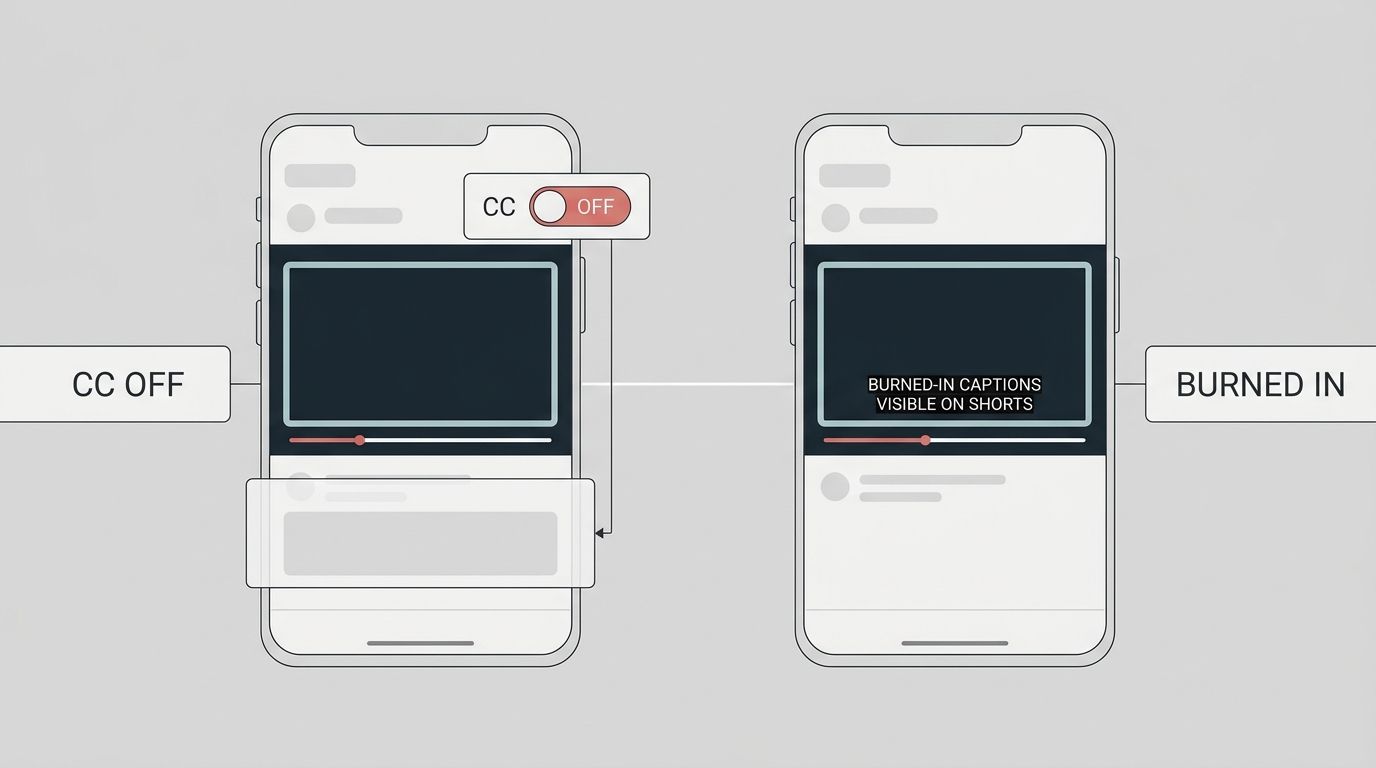
You can ship both. Burn-in for retention in mute feeds. Keep a Studio track for accessibility and for viewers who prefer system captions.
Official Shorts and captions guidance changes with Studio updates. Check YouTube Help for Shorts and captions upload docs when button names move.
Burn-in workflow aimed at Shorts chrome
- Export your 9:16 master without captions first if you still need a clean archive.
- Generate a timed transcript from the final audio.
- Fix titles, channel names, and product words. Shorts hooks fail when the first three seconds show a wrong brand.
- Place text in the middle band. Shorts UI eats the lower third and parts of the right edge more aggressively than a desktop player suggests.
- Keep lines short. Aim for phrases a thumb-scroll viewer can finish in one glance.
- Export an MP4 where the words are baked in.
- Upload that file as a Short in Studio or the mobile app.
Timing that matches Shorts habits
- Front-load the first readable line. Many viewers decide in under two seconds.
- Avoid caption flashes shorter than a blink. Merge tiny cues.
- If music ducks under speech, still proof the spoken line. Auto tools often invent words under loud beds.
When Studio CC (or an SRT) is enough
Skip burn-in when:
- Accessibility is the only goal and retention copy is secondary.
- Legal or client rules require an editable text track.
- You are iterating the cut daily and cannot rebuild exports each time.
Upload an SRT or accept Studio's auto pass, then correct errors in Studio. That path does not give you brand colors inside the feed image.
Cross-posting without redesigning three times
If the same talking clip also goes to TikTok or Reels, design burn-in once for the strictest safe zone, then reuse the file. Platform-specific how-tos for those apps live elsewhere: add captions on TikTok and add captions to Instagram Reels. The deeper file-versus-native decision is covered in app captions vs captions in your video file.
Quality gate before you publish the Short
Watch the upload preview on a phone, not only in Studio's desktop player.
- CC off: can you still follow the spoken line?
- CC on: do burn-in and the track stack into a double mess? If yes, hide one.
- First three seconds: is the hook readable without sound?
- Faces and product demos: still clear of text?
AutoCaption can generate timed captions and export a Shorts-ready burned-in file from the homepage upload. Proof the transcript, place for Shorts chrome, then export.
Burn captions into YouTube Shorts when mute feeds matter more than a toggle. Keep Studio captions when you need an editable accessibility track. Many channels should do both.
Shorts-specific UI traps
YouTube Shorts packs more chrome into a phone frame than a classic landscape upload. Captions that looked fine in a desktop Studio preview often collide with:
- the channel name and subscribe control
- the like and comment rail
- the description scrap at the bottom
- progress UI that appears during scrubbing
Place the primary caption block in the middle band. If you need a second line, stack upward rather than downward. When a hook word must land in the first second, put that word alone on its own cue before the denser sentence begins.
Test with captions burned in and Studio CC both available. If both show at once, the viewer sees a double stack. Prefer burn-in for mute feeds, then keep the Studio track accurate for accessibility without fighting the same vertical space.
A practical weekly cadence
For channels that ship several Shorts a week:
- Batch record talking clips on one day.
- Caption and burn in on another day with one style system.
- Upload with consistent safe-zone placement so the brand look compounds.
Changing fonts every Short trains viewers to ignore the text. Stable placement and weight make muted viewers trust that the words will always be readable.
If a clip will also become a TikTok or Reel, design for the strictest safe zone once. Rebuild only when a platform forces a crop change. That habit saves hours and keeps the spoken line identical across apps.
Written by
Amina Qureshi
Motion and Style Designer at AutoCaption. Builds readable caption looks for Reels, TikTok, and Shorts.
More topics you may like
Auto Captions
How to Add Captions on TikTok: In-App vs Burned Into the File

Omar Raza

Auto Captions
Captions vs Subtitles vs Transcripts: What Creators Need

Sara Malik

Auto Captions
SRT vs VTT: Which Subtitle Format Should You Use?
Sara Malik

Auto Captions
How to Create an SRT File From a Video
Sara Malik

Auto Captions
How to Add Captions to Instagram Reels (Native vs Burned-In)
Sara Malik