



How to Add Captions on TikTok: In-App vs Burned Into the File
Learn how to add captions on TikTok with the Captions button, how to fix mistakes, and when to burn captions into the video file for branding and cross-posting.
Caption your next video free

Omar Raza
How to Add Captions on TikTok: In-App vs Burned Into the File
Open your TikTok draft, tap Captions on the right tool column, correct the transcript, move the text off the crowded edges, then post. That is the fastest way to add captions on TikTok for a single post. Bring a file that already shows captions when TikTok's styles cannot match your brand or when the same clip must look identical on other apps.
Muted autoplay is normal in the For You feed. If the spoken line is not visible, many people scroll away before they unmute.
What "Captions" means inside TikTok
TikTok uses the same word for different jobs. Keep them straight:
| TikTok feature | Who controls it | What it is good for |
|---|---|---|
| Captions tool while editing | You, before you post | Quick readable text on this upload |
| Auto captions viewers can enable | Viewer / accessibility path | Backup when someone turns them on |
| Edit captions after publish | You, on eligible posts | Fix a wrong name without re-uploading |
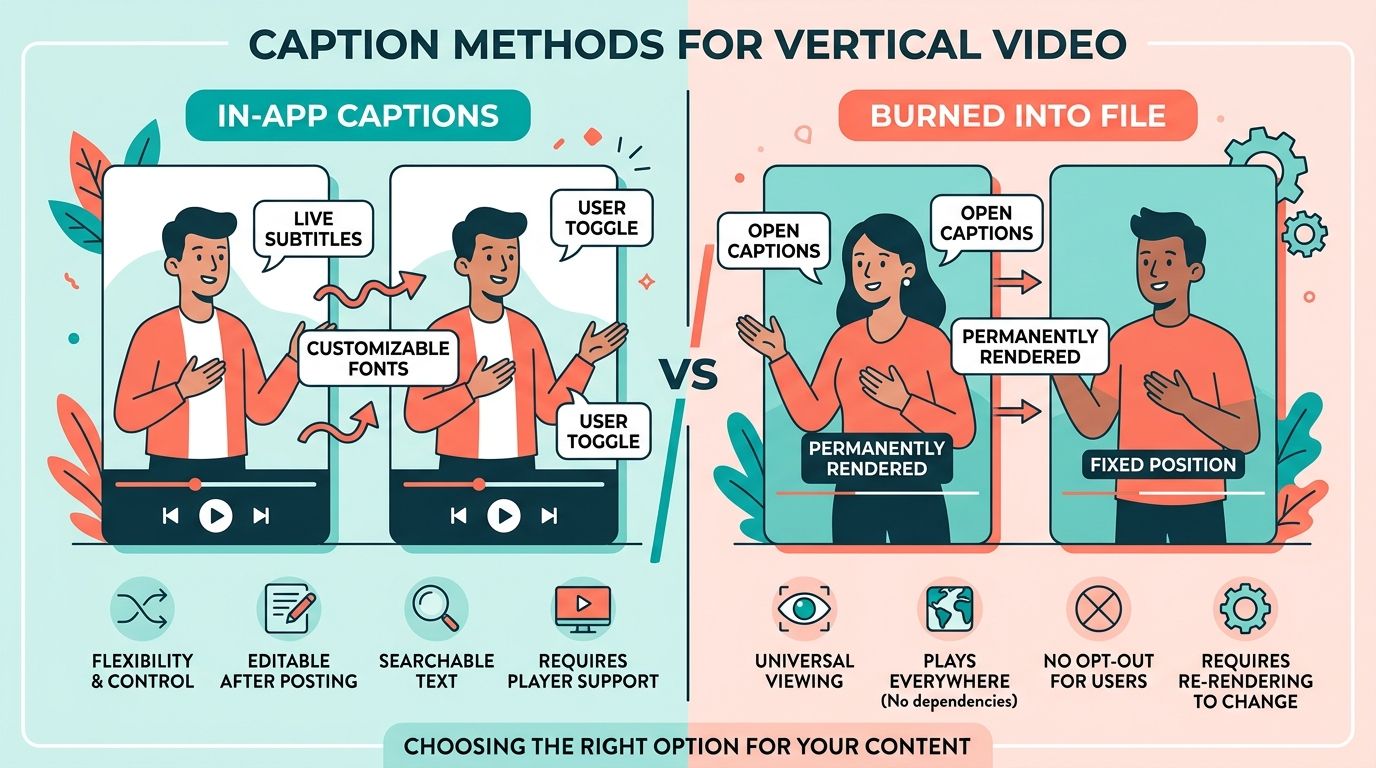
None of those three is the same as designing a portable caption style that ships inside the MP4. Use the editing tool for speed. Use a pre-captioned file when the look must survive another platform.
TikTok's own help covers accessibility captions and editing after you post. Treat that documentation as the source of truth for button labels that change by app version. TikTok accessibility and captions help.
TikTok Captions tool: the practical path
- Record or upload, then stay on the preview screen with the side tools visible.
- Tap Captions. Accept the permission prompt the first time TikTok asks.
- Wait until lines appear over the video.
- Tap any wrong word. Fix slang, shop names, and numbers before you share.
- Adjust color or weight if TikTok offers options for your account.
- Drag the block into the middle band. Leave the right icons, username, and description strip empty.
- Write the post caption (the text under the video) separately, then share.
Safe zone checklist for TikTok
- Keep text off the right engagement column.
- Keep text above the username and hashtag area.
- Prefer one or two short lines. Long paragraphs fail on small phones.
- Preview with sound off. If the joke only works in audio, rewrite the on-screen line.
After you post
On eligible videos, TikTok lets you edit captions without rebuilding the whole upload. Use that for a typo you spotted late. Do not rely on it for a full restyle. Restyling still means a new file.
When a pre-captioned file is the better upload
Stay with TikTok's tool when the video lives only on TikTok and standard fonts are fine. Switch to a file that already shows captions when:
- You need word highlights that TikTok does not offer.
- One master cut also goes to Instagram or YouTube.
- Client or brand rules lock colors and weight.
- Speech is messy and you want a longer proof pass outside the phone editor.
Workflow for the pre-captioned path:
- Finish the 9:16 edit first. Do not caption a rough cut.
- Generate timed text, proof names, then place captions for TikTok's safe zone.
- Export an MP4 where the words are part of the picture.
- Upload that file to TikTok. Skip the Captions tool so you do not stack two layers.
Want karaoke-style highlights timed to each word? That is a different job than basic in-app text. See karaoke captions for TikTok. For the Instagram Reels sticker path on a different app, see how to add captions to Instagram Reels. For the wider file-versus-app decision, see app captions vs captions in your video file.
Proof before you hit Post
Play the draft once with sound off and once with sound on.
- Names and product words match how you say them.
- Timing does not lag the speaker by a full beat.
- No line covers a mouth or a product demo.
- Right-side icons stay readable.
If any check fails, fix it in TikTok or rebuild the export. Publishing a wrong transcript teaches the wrong line to every muted viewer.
Quick decision
| Situation | Do this |
|---|---|
| One TikTok post, clear speech, today | Use the Captions tool |
| Brand colors or word highlights | Upload a pre-captioned MP4 |
| Same look on Reels and Shorts | Upload a pre-captioned MP4 |
| Tiny typo after publish | Edit captions on the live post if TikTok allows it |
AutoCaption can generate word-timed captions and export a vertical file ready for TikTok when you need that portable look. Start from the homepage upload with a short talking clip, proof the transcript, then export.
Adding captions on TikTok is either a two-minute in-app pass or a deliberate export. Pick based on where the clip will live, not on habit.
Written by
Omar Raza
Language and accessibility specialist at AutoCaption. Focused on Urdu script, Roman Urdu, and right-to-left caption workflows.
More topics you may like
Auto Captions
Burn Captions Into YouTube Shorts (When Auto CC Is Not Enough)

Amina Qureshi

Auto Captions
Captions vs Subtitles vs Transcripts: What Creators Need

Sara Malik

Auto Captions
SRT vs VTT: Which Subtitle Format Should You Use?
Sara Malik

Auto Captions
How to Create an SRT File From a Video
Sara Malik

Auto Captions
How to Add Captions to Instagram Reels (Native vs Burned-In)
Sara Malik