Free Auto Captions Without a Watermark: What to Check Before You Export
Want free auto captions with no watermark? Use this checklist for burn-in export, signup walls, language limits, and style control before you trust a free caption tool with your video.
Caption your next video free

Sara Malik
Free Auto Captions Without a Watermark: What to Check Before You Export
Free auto captions with no watermark sound simple until the export adds a logo, forces a signup wall, or only works for English. Treat "free" as a checklist, not a promise on a landing page.
This guide helps you evaluate free caption paths before you upload a client clip or a finished Reel. It is not a ranked leaderboard with invented scores.
Quick verdict
Prefer tools that let you:
- See a watermark-free export on a real test file.
- Edit the transcript before burn-in.
- Confirm language and script support for your speech.
- Understand account, length, and quality limits without surprises.
If any of those fail on a 30-second test, stop. Do not discover the watermark on a published post.
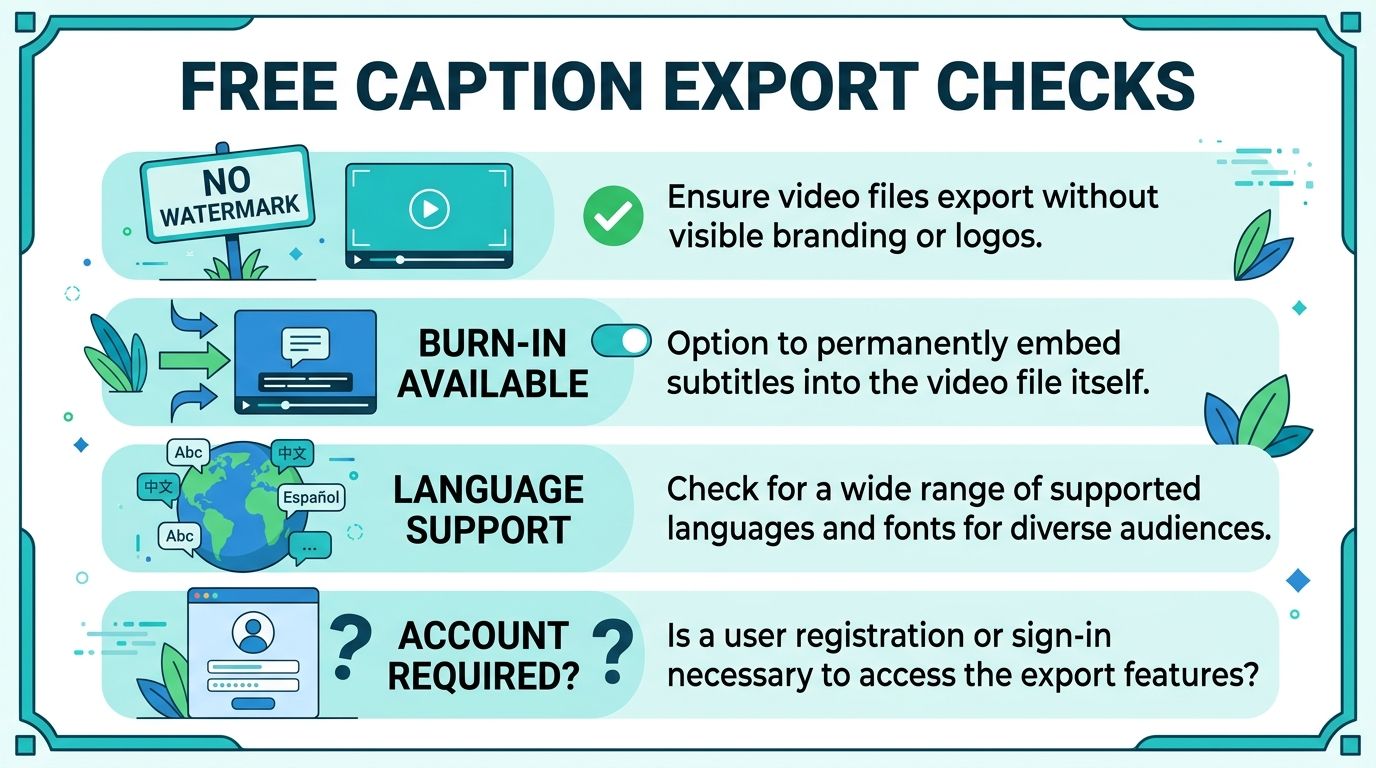
The checks that matter
1. Watermark on the exported file
Download a short test. Play it full screen on your phone. Look at every corner through the whole clip, not only the first second. Some tools stamp only at the end.
Watermark-free marketing copy is not proof. The file is proof.
2. Burn-in versus soft captions
Burned-in captions are part of the image. Soft captions are a separate track (SRT/VTT) that platforms may ignore or restyle. For TikTok, Reels, and Shorts, burn-in is usually the reliable muted-view path. Soft files are still useful for YouTube and editors. Compare those jobs in app captions vs captions in your video file.
3. Account and email walls
Some tools are free only after signup. Others let guests try, then require an account for export. Neither is automatically wrong. What matters is knowing the rule before you invest editing time.
AutoCaption lets visitors start captioning from the homepage. Export and cloud features require an account. Free verified accounts get monthly credits; Pro raises limits. Check current numbers on the subscription page rather than assuming older blog posts still match the product.
4. Language and script support
English-only free tiers are common. If you speak Urdu or want Roman Urdu, test that script on purpose. A perfect English demo does not prove your language works.
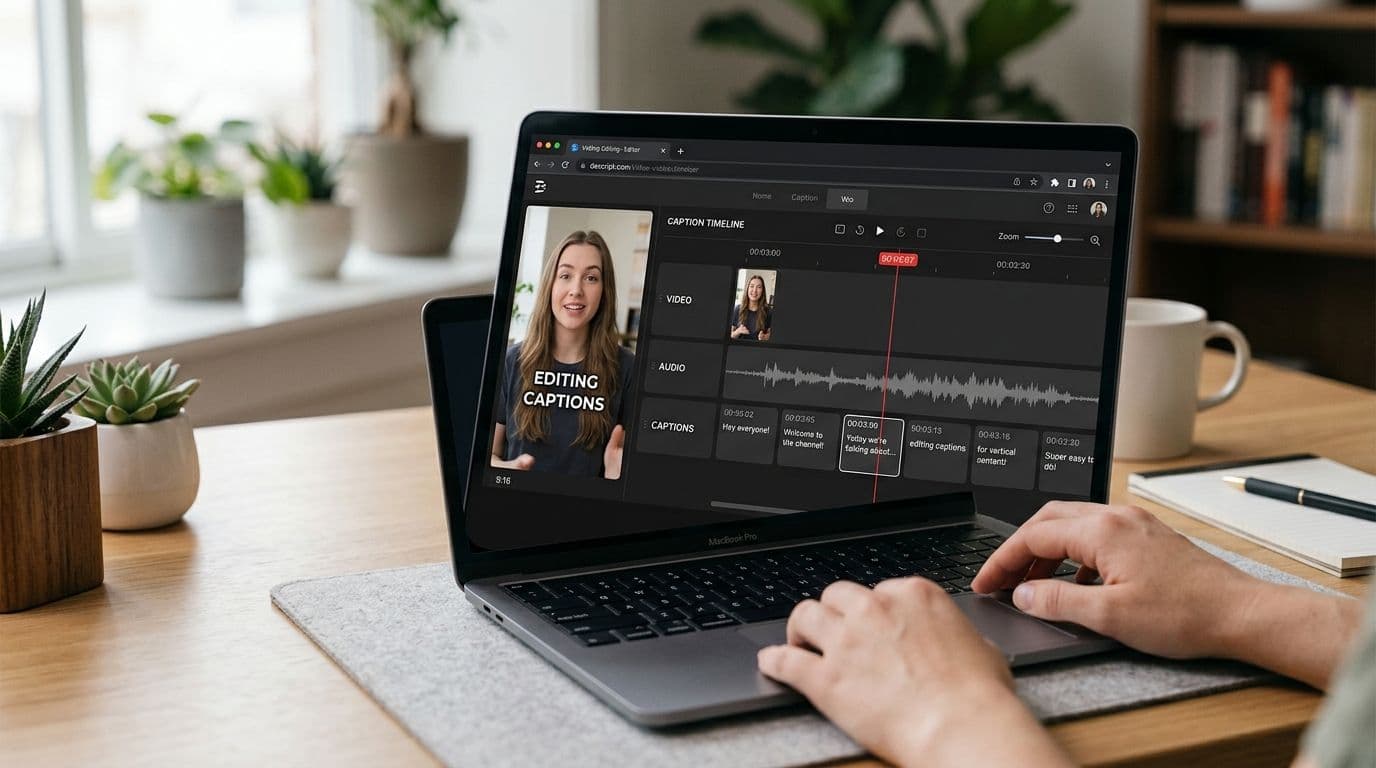
5. Edit quality before export
Free captions that you cannot correct are expensive in reputation. You need to fix names, numbers, and slang. If the tool only offers a one-shot burn with no transcript edit, use it only for throwaway drafts.
6. Style control without clutter
A free plan that only offers one low-contrast style can still be useful. It is less useful if the default look fights your footage. Check contrast on a bright outdoor clip and a dark indoor clip.
Comparison table (evaluation lens)
| Check | Pass looks like | Fail looks like |
|---|---|---|
| Watermark | Clean export on phone playback | Logo, URL, or badge stamped on frames |
| Burn-in | Captions visible offline and on social upload | Only a subtitle file, or platform-only stickers |
| Edit path | Transcript or caption lines are editable | No correction before export |
| Language | Your language/script tested on a real clip | English demo only |
| Limits | Length, credits, or resolution stated clearly | Surprise paywall at download |
| Privacy | You understand where the file is processed | Unclear upload terms on sensitive footage |
Competitor pricing and free-tier rules change. Re-check each site before publishing a comparison claim about a specific plan.
Free paths creators actually use
Native platform captions
TikTok, Instagram, and YouTube can generate captions inside the app. They are often free and watermark-free because they are platform features. Limits: style control and portability. Good for speed. Weak for a branded multi-platform master file.
Browser caption tools with free credits
Caption-focused browser tools can be free to try with credit or length caps. AutoCaption is one option in this group: word-timed captions, burn-in export, SRT/VTT, and no watermark on the caption export path as currently shipped. Always verify on a test file, because product details can change.
Local or privacy-first burn tools
Some tools process video on your device. They can be strong for watermark-free burn-in and privacy. They may be weaker on polished animated styles or non-English scripts. Test the language you publish in.
Common traps
- Judging a tool from the marketing page instead of an exported MP4
- Assuming "free captions" means free burn-in at full resolution
- Ignoring Roman Urdu or RTL needs until after you design the workflow
- Publishing an unreviewed transcript because the export was free
- Mixing soft subtitle files with social burn-in needs
A sane free workflow
- Pick a 20 to 40 second talking clip.
- Run it through the candidate tool.
- Correct two intentional hard words (a name and a number).
- Export and inspect on a phone.
- Only then caption the real post.
For the general short-form process after you choose a tool, use how to add auto captions to short-form video.
Bottom line
Free auto captions without a watermark are real, but only when the export proves it. Use the checklist, test your language, and keep a human pass on the transcript. That combination beats any tool list that scores products without opening a file.
Run a short watermark check on a test clip before you caption the real upload.
Written by
Sara Malik
Creator Education Lead at AutoCaption. Helps short-form creators ship word-timed captions without a full video editor.